Did you know that there are thousands of pixels that compose an image? It is fascinating to think that technology and the digital world have allowed us to see images through the work of pixels. To understand this, I am going to walk you through something called bit depth so you can see how amazing pixels are. Bit depth specifically quantifies the amount of colors that compose an image based on a color palette. This is defined in terms of 0’s and 1’s called bits. These bits are used to identify each specific color precisely. When an image is grayscale, the bits are used to specify the shades present in an image. When there are more combinations of 0’s and 1’s, images can encode higher amounts of shades or colors because there are higher bit depths present. For example, a black and white or monochrome image is known as a ‘1 bit image’ because it shows two colors (black and white). This is because 1 bit can only show two colors, in this case black and white. As bit depth increases, an image will have better color and shading transitions because there are more colors available for the image. For example, with a bit depth of two you can have four colors because two raised to the power of two is four. Therefore, this pattern is continued by increasing the exponent value such that two raised to the third power is eight, two raised to the fourth power is sixteen etc. This means that with a bit depth of three, eight colors are available for the image, with a bit depth of four, sixteen colors are available for the image and so forth. Having more colors can allow smoother transitions and blending between the colors. When there are 48 bits per pixel, there are about 281 trillion colors available which allows for a smooth transition of one color into another. I can’t even imagine 1,000 colors in an image, let alone 281 trillion. It is amazing how the digital world has helped us to develop images that we see in our world.
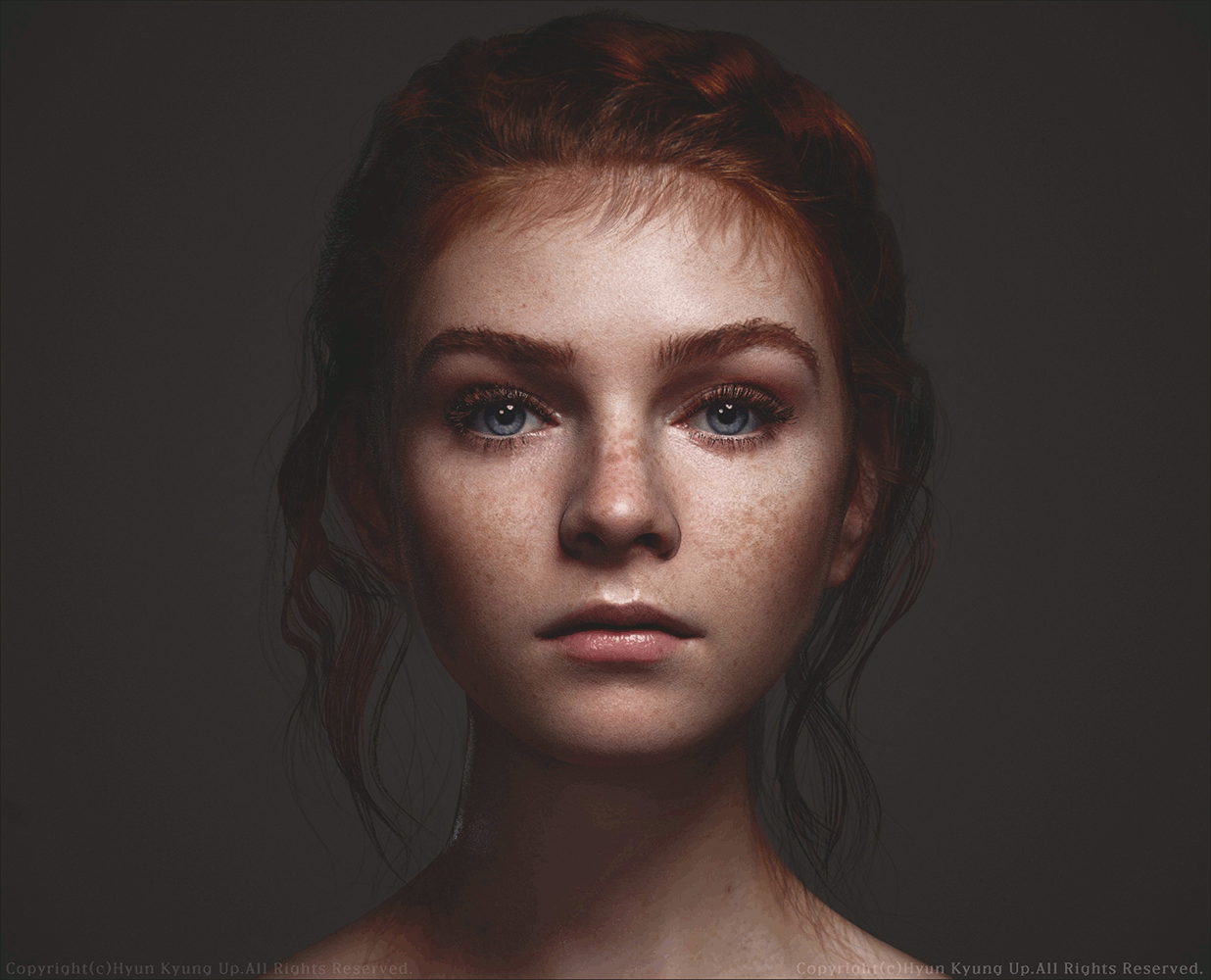
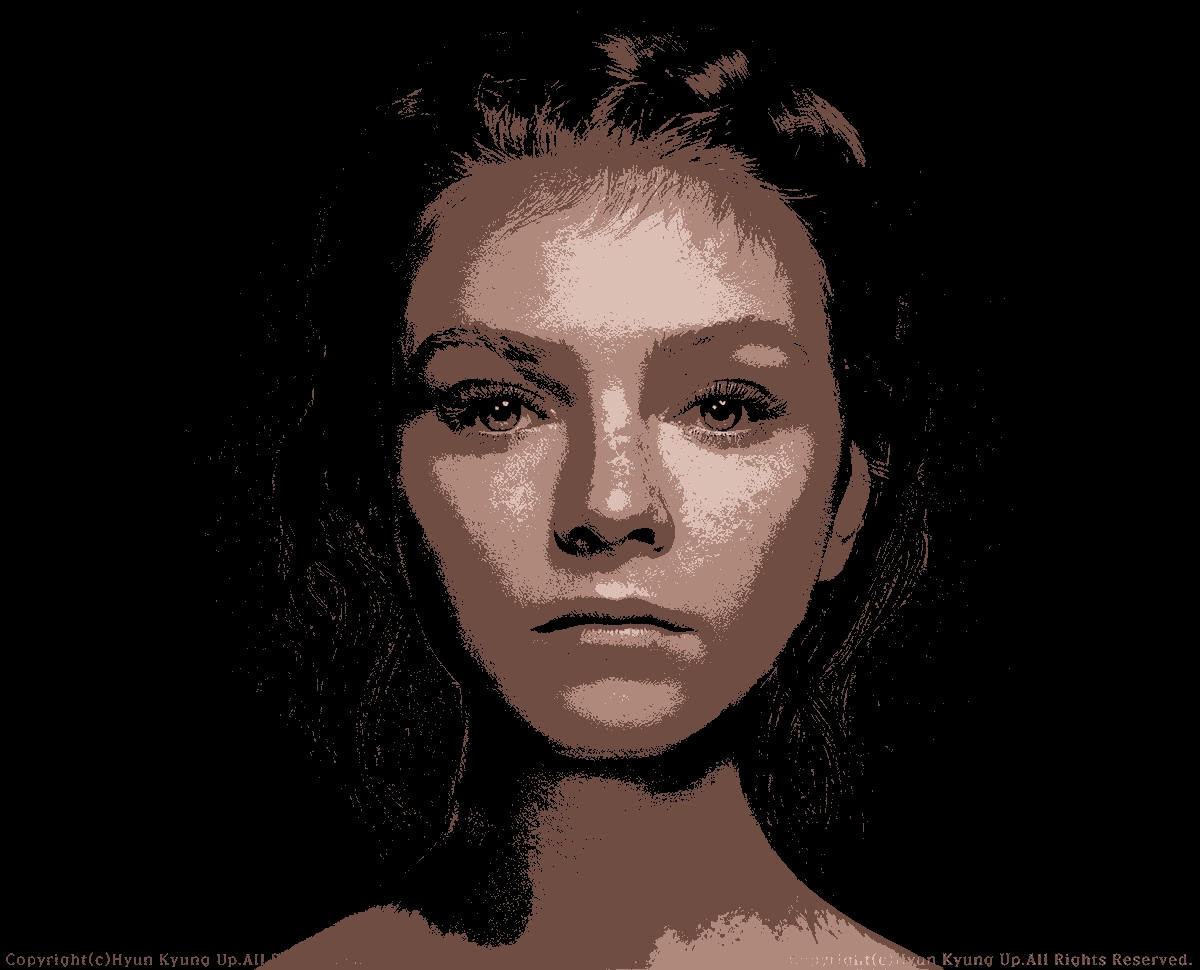
Using an image editor site called GIMP, I was able to recreate images and manipulate them by using pixels (see images). The image on the top is the original photo, and the image on the botton is the recreated photo. In the recreated image I reduced the maximum amount of colors from 256 to 4. This significantly reduced the quantity of colors shown and also created more pixel visibility. In the bottom image, you are able to more clearly see the pixels that compose the image. There are so many different ways to manipulate pixels by using color, shade, grayscale etc. There was another pixel-related site that I used called Pixact.ly. This site tested your knowledge of pixels and their dimensions. In one example, the site asked me to draw a pixel with a width of 25 px and height of 30 px. After completing your drawing, the site will notify you of how close or far you were from the correct dimensions. When trying out Pixact.ly for the first time, my first guess was so far off that the site even said “Really?” after I submitted my answer! I laughed for a bit, tried again, and was only off by 9 on my next try! All it takes is a bit of practice, but it is a fun and entertaining way to get to know your pixels!